Spark Shell + S3 + MySQL
By apalagin
Awhile ago I was tasked to generate some reports where data could come from different sources. To be exact one data set lives in Redshift, another resides on AWS S3 and all metadata is retained in MySQL. I read few articles about Spark and this time I thought Spark would be a great tool. Especially when I realized I couldn’t replicate data from MySQL to Redshift.
So before actually coding anything I needed to play with Spark. And any book or tutorial starts with Spark shell. I decided to write down the steps if I had to do that on Windows (b/c it wasn’t trivial and required a lot of reading and trying).
Java
Yeap, we need Java first. Both Hadoop and Spark run on Java, so install any JDK 11 (LTS version). This time I chose former OpenJDK binaries from https://adoptium.net. Note that JDK 17 will not work.
Hadoop
So first thing you need to download is Hadoop distribution. Spark uses a lot of Hadoop features, but original Spark + Hadoop bundle didn’t work for me. Therefor go to https://hadoop.apache.org/releases.html and grab 3.2.0. Unpack it and remember the path.
Download Hadoop utils for Windows from https://github.com/cdarlint/winutils/blob/master/hadoop-3.2.2/bin/winutils.exe and copy it to Hadoop’s bin/ folder. Next step is to update JAVA_HOME in Hadoop’s etc/hadoop/hadoop-env.cmd:
set JAVA_HOME="c:\Program Files\Eclipse Adoptium\jdk-11.0.13.8-hotspot"
For some reason just setting
JAVA_HOMEglobally did not work for me! Also Apache’s scripts for Windows CMD a pretty bad with handling white spaces in folder paths.
Next is to get Hadoop classpath by running this command:
.\bin\hadoop.cmd classpath
Copy its output as we will use it in Spark configuration.
Spark
Now we need to download Spark. Browse to https://spark.apache.org/downloads.html, pick 3.0.3 and select Pre-built with user-provided Hadoop. Download archive and extract it.
Version 3.2.0 had tons of exceptions for me to run simple spark-shell.cmd and there is thread on Stackoverflow how to overcome that, but it’s too annoying.
Next we must configure Spark to use our extracted Hadoop. For that open Spark’s conf\ folder and create spark-env.cmd file similar to this:
set "JAVA_HOME=<here goes path to Java installation>"
set "HADOOP_HOME=<here goes path to Hadoop installation>"
set "SPARK_DIST_CLASSPATH=<here goes output from hadoop.cmd classpath>"
This is basically enough to start your Spark shell. So let’s add path to Spark’s bin\ folder to our user path and then run spark-shell.cmd command. You will get something like this:
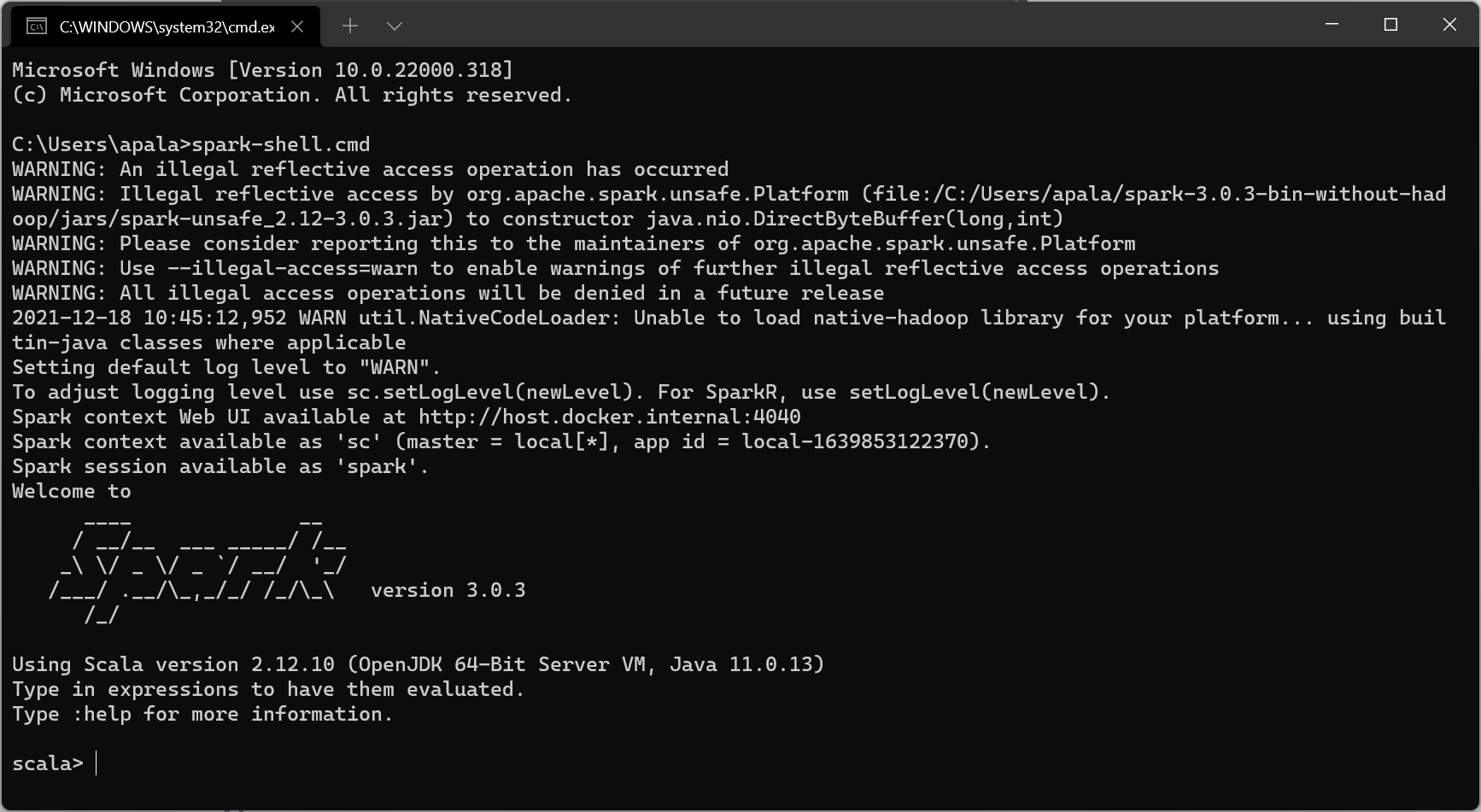
And you can even run some examples:
run-example.cmd SparkPi 10
S3
In order to access S3 files we need to take care of two things: a) ensure that we have AWS SDK in Spark’s classpath; b) configure credentials provider.
Hadoop 3.x installation already comes with AWS SDK bundle which is plased in hadoop/share/tools/lib folder! So we need to add it to Spark’s classpath. For that just edit spark-env.cmd we created earlier and add full path to that folder to SPARK_DIST_CLASSPATH (add ; before that path). For example in my case I added ;C:\Users\apalagin\hadoop-3.2.2\share\hadoop\tools\lib\*. To verify that it worked run spark-shell.cmd and type import com.amazonaws._. If no errors appear then we are good, otherwise double check the correctness of the path.
Now to configure AWS credentials provider we need to set a special config variable fs.s3a.aws.credentials.provider. The most common value for that would be com.amazonaws.auth.DefaultAWSCredentialsProviderChain which basically tries all supported credential providers one by one (environment variables, default profile or EC2 role). Environment variables are probably the most common use case.
But let’s simplify our life a little bit. When working with Spark you still need to import a lot of helplful functions and types. And it is a lot of typing. Instead let’s create a file init.scala in our working folder (for example Desktop\spark-playground\) with this content:
import com.amazonaws._
import com.amazonaws.auth._
import org.apache.spark.sql._
import org.apache.spark.sql.functions._
import org.apache.spark.sql.types._
import spark.implicits._
sc.hadoopConfiguration.set("fs.s3a.aws.credentials.provider", "com.amazonaws.auth.DefaultAWSCredentialsProviderChain")
Now grab your S3 credentials and configure correspondent variables (AWS_ACCESS_KEY_ID and AWS_SECRET_ACCESS_KEY). Then run spark-shell.cmd inside spark-playground folder. When it’s loaded type :load init.scala and you are ready to load files from Amazon S3!
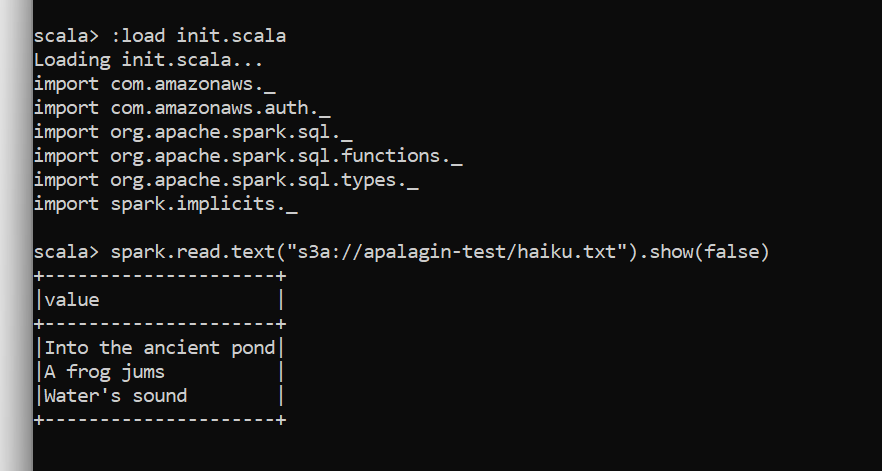
Note that in Hadoop ecosystem s3a:// (not s3://) is the schema for accessing S3 buckets.
MySQL
As usual for any JVM based application Spark needs a JDBC driver to work with a database. In this case we can use --packages parameter to specify MySQL driver (aka MySQL J/Connector) to be loaded by Spark shell from Maven repository (check you MySQL version):
spark-shell.cmd --packages "mysql:mysql-connector-java:8.0.28"
Next given we know user/password and URL to the database we can load table as a data frame:
val table = spark.read.format("jdbc")
    .option("driver", "com.mysql.cj.jdbc.Driver")
    .option("url", "jdbc:mysql://localhost:13306/test")
    .option("dbtable", "haiku")
    .option("user", "user")
    .option("password", "password")
    .load()
Or we can create a data frame from a query result set:
val query = spark.read.format("jdbc")
    .option("driver", "com.mysql.cj.jdbc.Driver")
    .option("url", "jdbc:mysql://localhost:13306/test")
    .option("dbtable", "(SELECT * FROM haiku) tmp")
    .option("user", "user")
    .option("password", "password")
    .load()
To simplify typing those long commands we can add helper functions to our init.scala:
def loadTable(table: String) = {
    spark.read.format("jdbc")
    .option("driver", "com.mysql.cj.jdbc.Driver")
    .option("url", "jdbc:mysql://localhost:13306/test")
    .option("dbtable", table)
    .option("user", "user")
    .option("password", "password")
    .load()
}

def executeQuery(sql: String) = {
    spark.read.format("jdbc")
    .option("driver", "com.mysql.cj.jdbc.Driver")
    .option("url", "jdbc:mysql://localhost:13306/test")
    .option("dbtable", s"($sql) tmp")
    .option("user", "user")
    .option("password", "password")
    .load()
}
and now we can simply do this:
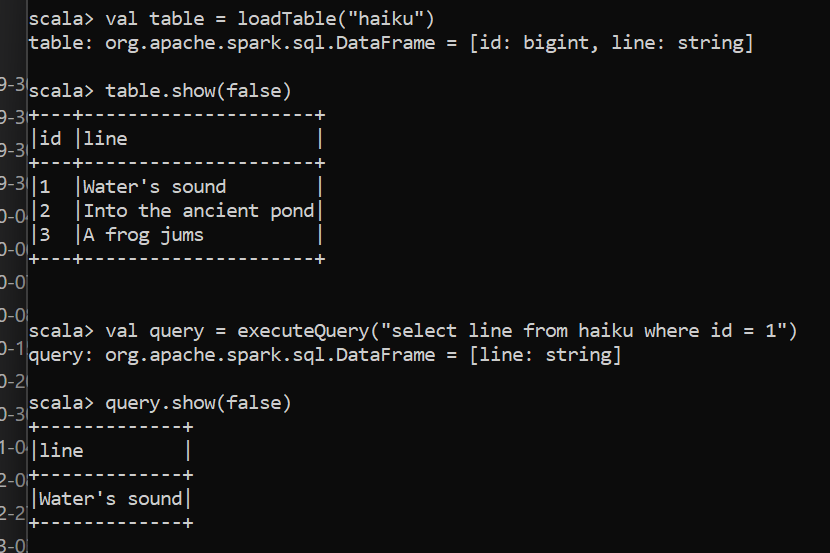
Final note
As you can see it is very simple with Spark to access both S3 and MySQl and what is more important to join data from different sources, filter and transform your results! Spark and Spark Shell indeed is a mighty tool for working with many data sources in a breeze!